> ## Documentation Index
> Fetch the complete documentation index at: https://docs.dojoapps.co.uk/llms.txt
> Use this file to discover all available pages before exploring further.
# Export Guide
> How to download your shipping rates as a spreadsheet file.
Download your shipping rates from MatrixRates — This guide shows you how to export your shipping rates as a file you can open in any spreadsheet app.
**Plan Requirement:** Exporting shipping rates is available on the **Growth** and **Scale** plans.
From your Shopify admin, go to **Apps** and click **MatrixRates Import/Export**. The app opens in a new window.
Click on the delivery profile you want to manage (e.g., "General Profile"). This will show a list of shipping origins (locations) where you can import or export rates.
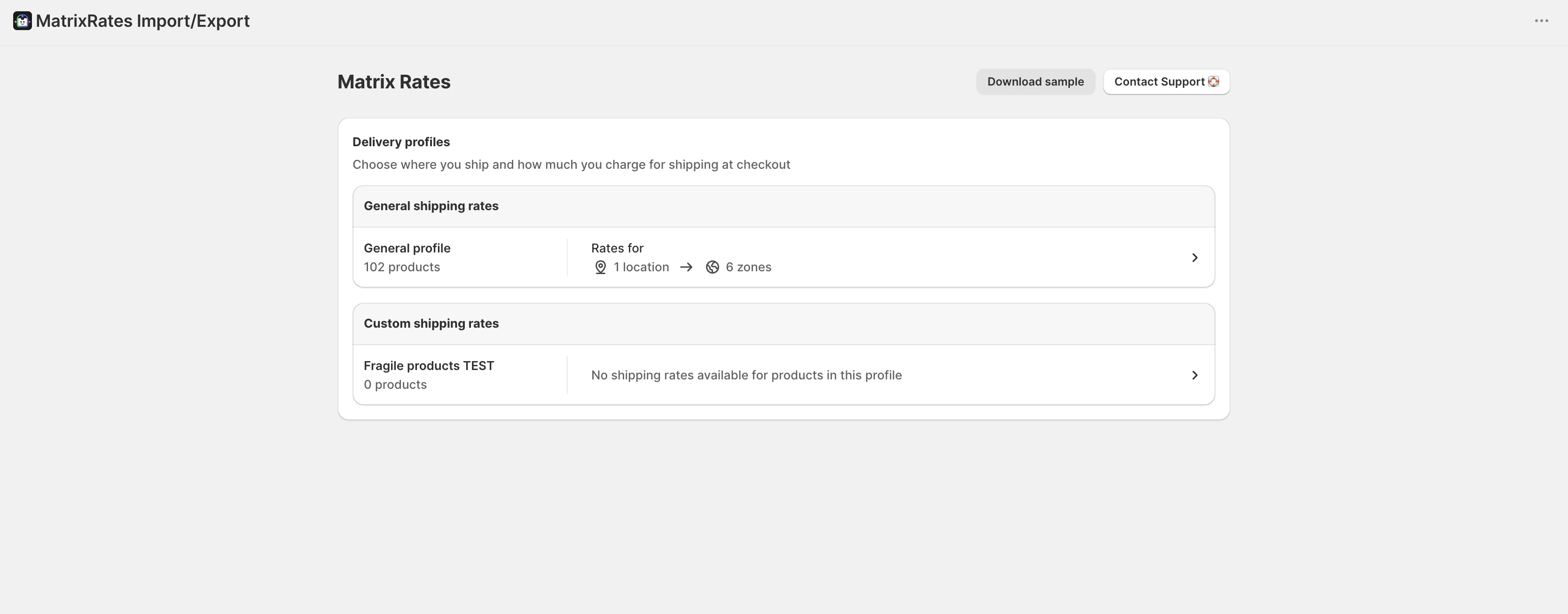 Find the location where you want to export rates from and click the **Export Rates** button.
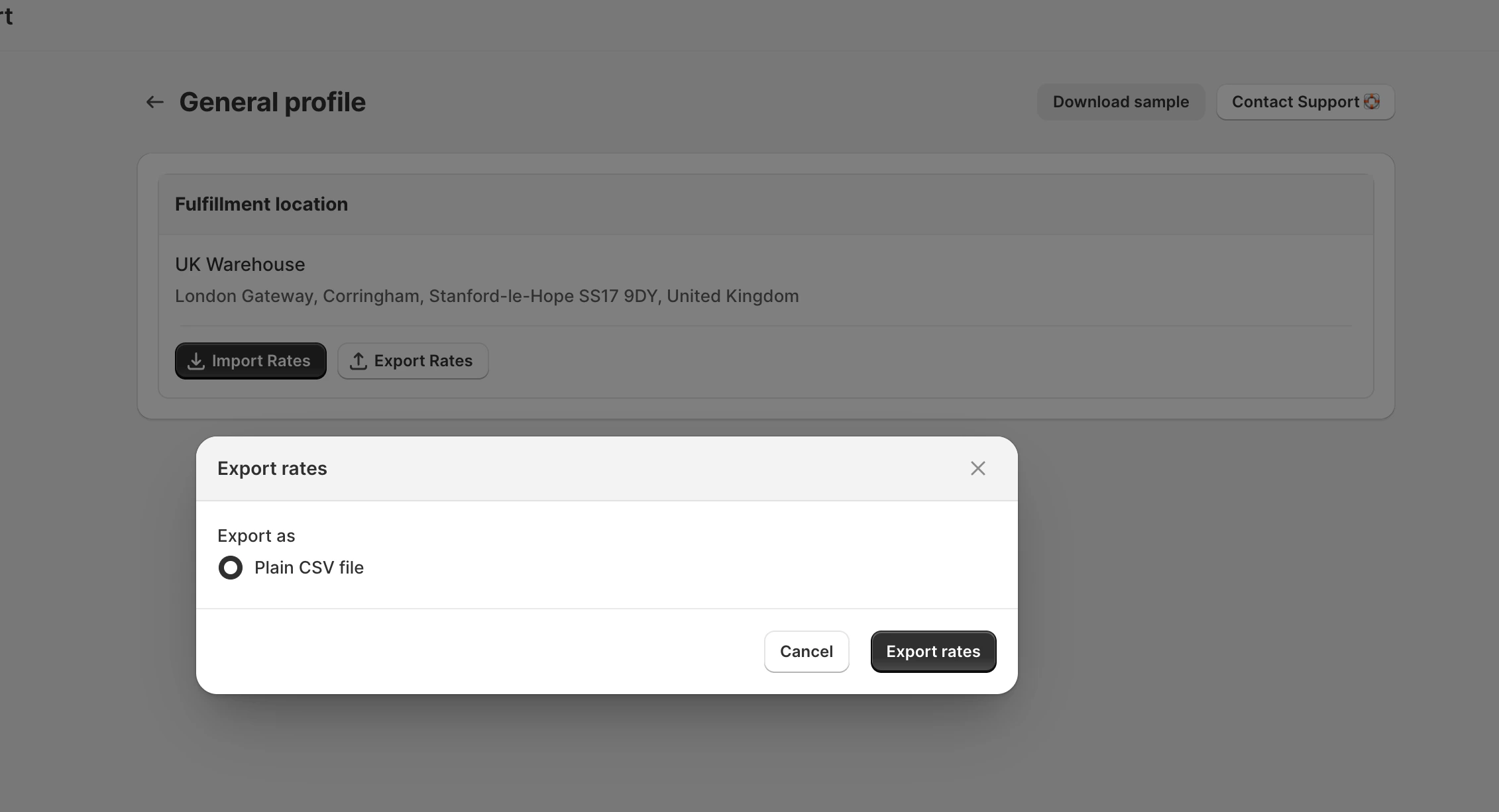 Ensure **Plain CSV file** is selected and click **Export rates**. Your browser will instantly download a CSV file to your computer.
The file will be named according to your delivery profile, location, and the current date/time (e.g., `shipping_rates_export_122879803726_129467842894_20260422_193637.csv`).
The file saves to your Downloads folder. If you're using Chrome or Edge, you'll see the file appear at the bottom of the browser window.
Go to your **Downloads** folder and double-click the CSV file you just downloaded. It opens in your default spreadsheet app — like Microsoft Excel, Google Sheets, or Numbers.
You now have a complete copy of your shipping rates that you can view, edit, or share.
Your export might be emailed to you instead of downloading instantly if either:
1. **You're using Shopify's new shipping options** — Your store uses live data from Shopify, so the export runs in the background and you'll receive an email with the CSV attached.
2. **You have more than 100 shipping zones** — Large exports take time to generate, so we'll email it to you instead.
In both cases, check your inbox for an email from us with the CSV file attached.
Open the file in a spreadsheet app, update your rates, then follow the [Import Guide](/import-guide) to upload the changes back to MatrixRates.
Save the exported file in a safe location — like a dedicated folder for your store settings. You can use it to restore rates if anything goes wrong.
Email the file to teammates or upload it to your internal documentation so everyone has the same up-to-date rates.
See the [Spreadsheet Reference](/spreadsheet-reference) to understand what each column means and how to format your rates correctly.
Ensure **Plain CSV file** is selected and click **Export rates**. Your browser will instantly download a CSV file to your computer.
The file will be named according to your delivery profile, location, and the current date/time (e.g., `shipping_rates_export_122879803726_129467842894_20260422_193637.csv`).
The file saves to your Downloads folder. If you're using Chrome or Edge, you'll see the file appear at the bottom of the browser window.
Go to your **Downloads** folder and double-click the CSV file you just downloaded. It opens in your default spreadsheet app — like Microsoft Excel, Google Sheets, or Numbers.
You now have a complete copy of your shipping rates that you can view, edit, or share.
Your export might be emailed to you instead of downloading instantly if either:
1. **You're using Shopify's new shipping options** — Your store uses live data from Shopify, so the export runs in the background and you'll receive an email with the CSV attached.
2. **You have more than 100 shipping zones** — Large exports take time to generate, so we'll email it to you instead.
In both cases, check your inbox for an email from us with the CSV file attached.
Open the file in a spreadsheet app, update your rates, then follow the [Import Guide](/import-guide) to upload the changes back to MatrixRates.
Save the exported file in a safe location — like a dedicated folder for your store settings. You can use it to restore rates if anything goes wrong.
Email the file to teammates or upload it to your internal documentation so everyone has the same up-to-date rates.
See the [Spreadsheet Reference](/spreadsheet-reference) to understand what each column means and how to format your rates correctly.