How to download your shipping rates as a spreadsheet file.
Download your shipping rates from MatrixRates — This guide shows you how to export your shipping rates as a file you can open in any spreadsheet app.
Plan Requirement: Exporting shipping rates is available on the Growth and Scale plans.
1
Open MatrixRates
From your Shopify admin, go to Apps and click MatrixRates Import/Export. The app opens in a new window.
2
Select your Delivery Profile
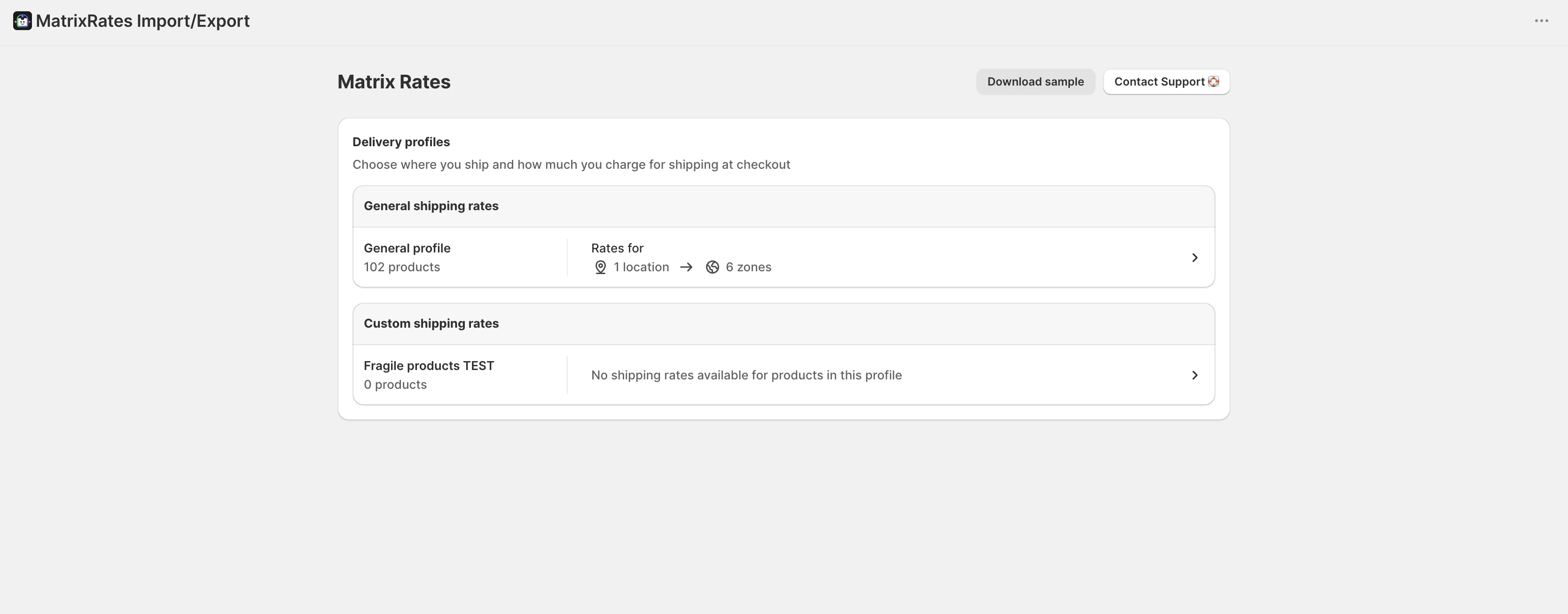
Click on the delivery profile you want to manage (e.g., “General Profile”). This will show a list of shipping origins (locations) where you can import or export rates.
The MatrixRates app showing the list of shipping locations
3
Click the Export button
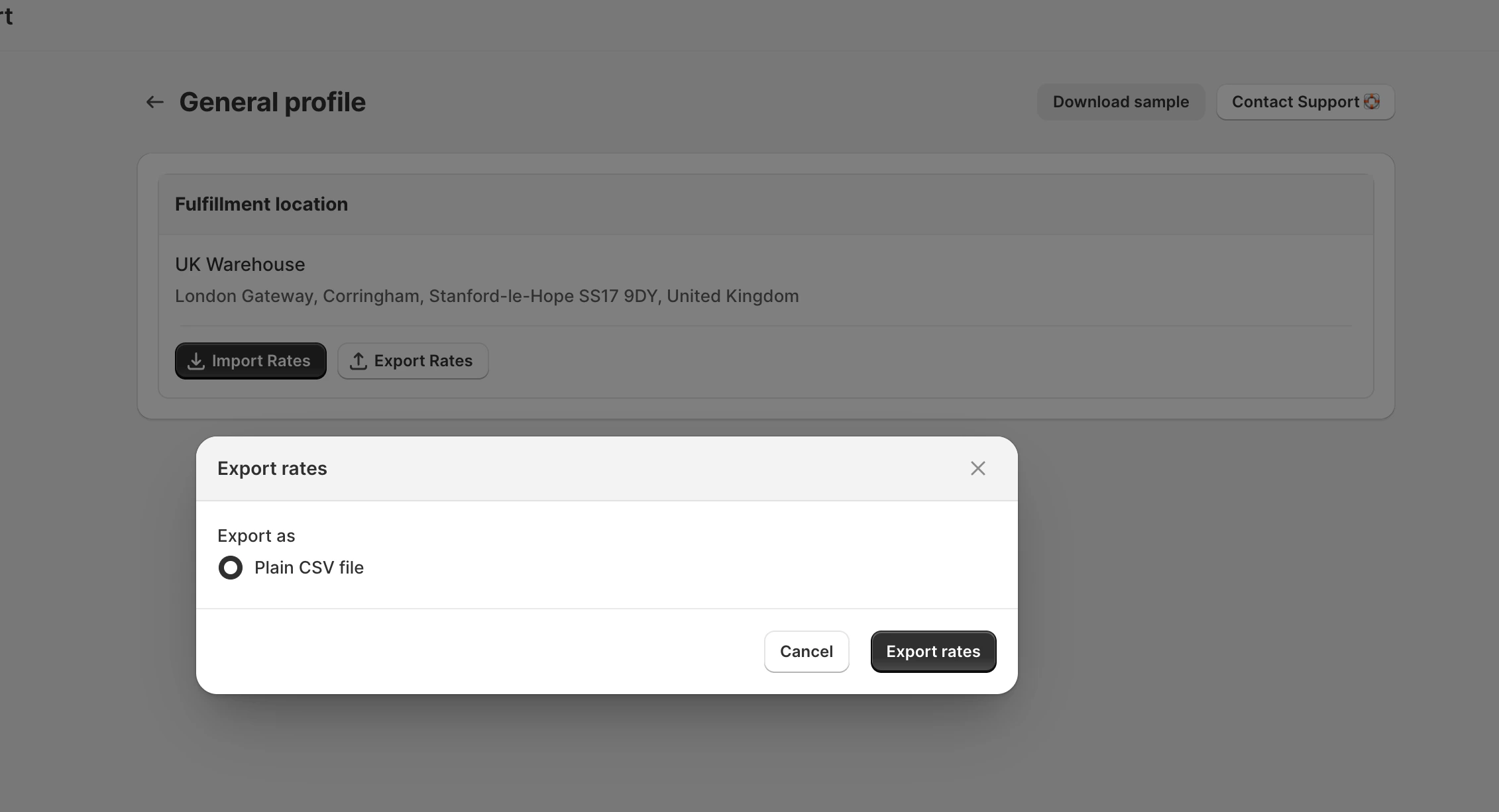
Find the location where you want to export rates from and click the Export Rates button.
The export popup in the MatrixRates app
Ensure Plain CSV file is selected and click Export rates. Your browser will instantly download a CSV file to your computer.
The file will be named according to your delivery profile, location, and the current date/time (e.g., shipping_rates_export_122879803726_129467842894_20260422_193637.csv).
The file saves to your Downloads folder. If you’re using Chrome or Edge, you’ll see the file appear at the bottom of the browser window.
4
Open the downloaded file
Go to your Downloads folder and double-click the CSV file you just downloaded. It opens in your default spreadsheet app — like Microsoft Excel, Google Sheets, or Numbers.You now have a complete copy of your shipping rates that you can view, edit, or share.
Why didn't my file download immediately?
Your export might be emailed to you instead of downloading instantly if either:
You’re using Shopify’s new shipping options — Your store uses live data from Shopify, so the export runs in the background and you’ll receive an email with the CSV attached.
You have more than 100 shipping zones — Large exports take time to generate, so we’ll email it to you instead.
In both cases, check your inbox for an email from us with the CSV file attached.
Edit and re-import
Open the file in a spreadsheet app, update your rates, then follow the Import Guide to upload the changes back to MatrixRates.
Keep as a backup
Save the exported file in a safe location — like a dedicated folder for your store settings. You can use it to restore rates if anything goes wrong.
Share with your team
Email the file to teammates or upload it to your internal documentation so everyone has the same up-to-date rates.
Learn about the spreadsheet format
See the Spreadsheet Reference to understand what each column means and how to format your rates correctly.