Importing a CSV is the fastest way to set up or update your shipping rates. Instead of entering rates one by one in Shopify, you can upload hundreds of rates at once using a spreadsheet file.
Important: Importing a file will overwrite all existing rates in the selected shipping zone. Always export a backup of your current rates before importing a new file.
Before you start, make sure your file is formatted correctly. Shopify requires specific column names and values to correctly process your rates.
Follow these steps to upload your shipping rates to Shopify.
1
Open MatrixRates
Log in to your Shopify Admin and navigate to Apps > MatrixRates Import/Export.
2
Select your Delivery Profile
Click on the delivery profile you want to manage (e.g., “General Profile”). This will show a list of shipping origins (locations) where you can import or export rates.
3
Navigate to Import
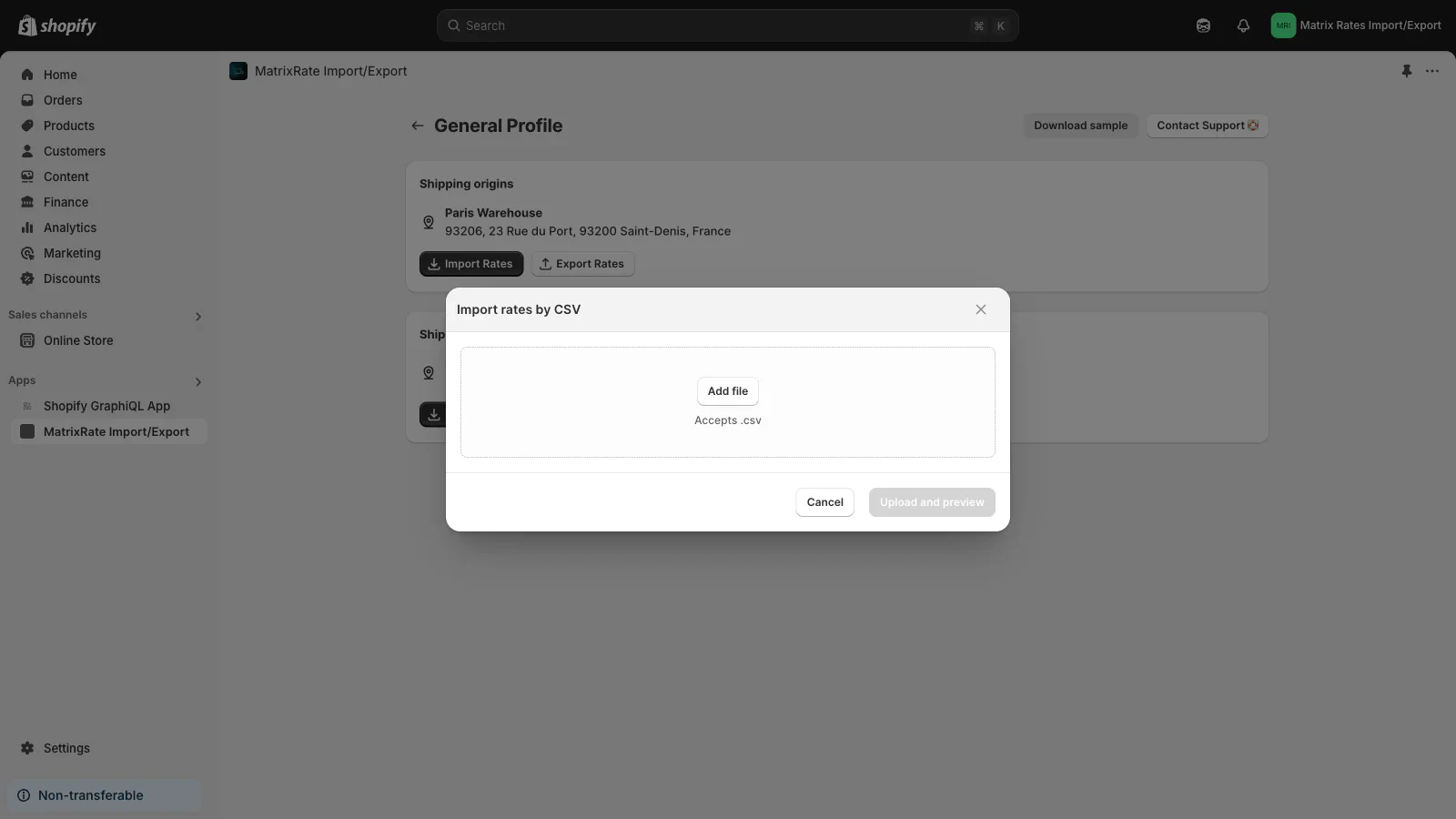
Find the location where you want to add rates and click the Import Rates button.
4
Select your file
Click the Add file button in the popup and select your spreadsheet file from your computer.
The import popup in the MatrixRates app
5
Upload and Preview
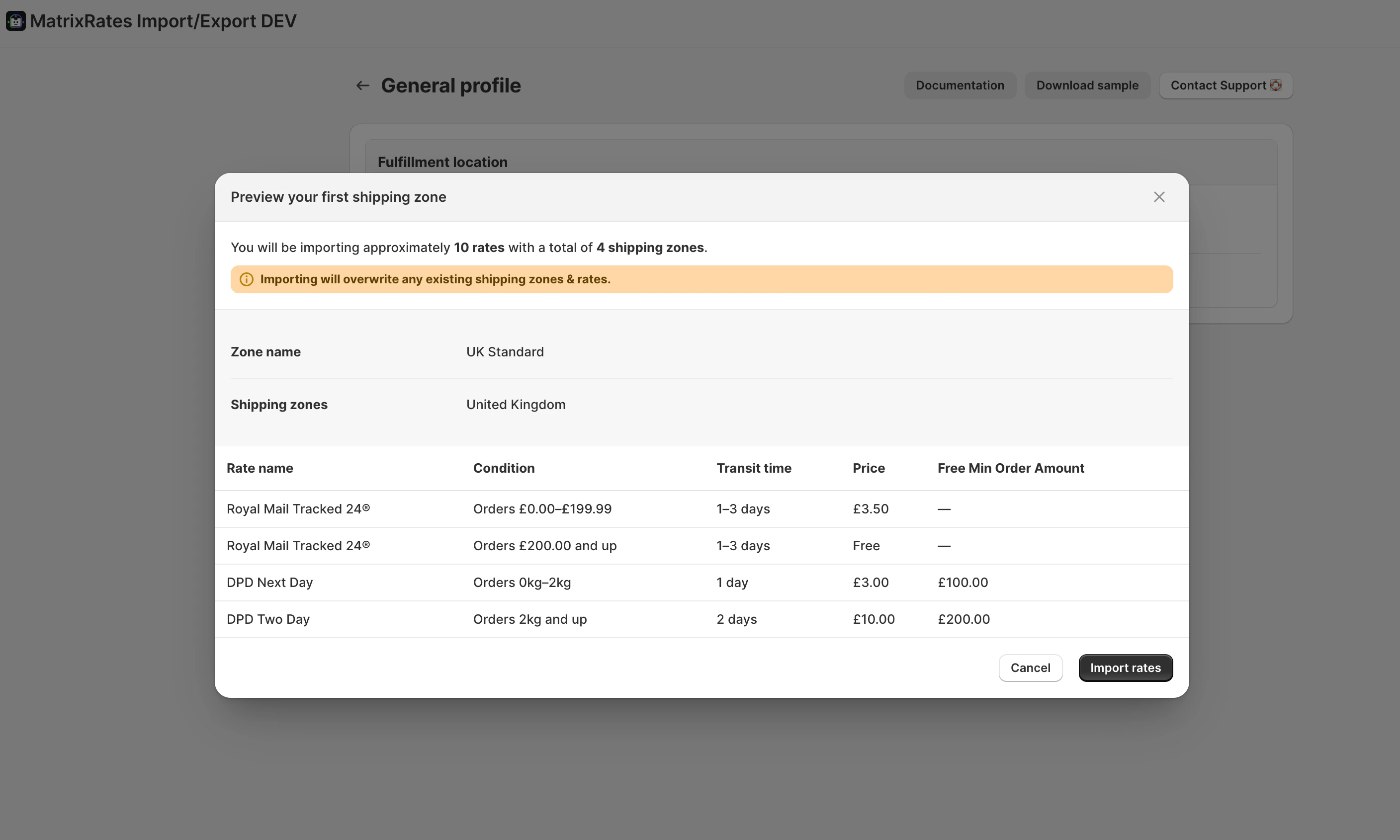
Click the Upload and preview button. The app will process your file and show you a summary of the rates and zones to be imported.
The preview screen showing a summary of rates to be imported
The preview screen shows approximately how many rates and shipping zones will be created. It also warns you that this action will overwrite existing shipping zones and rates for that location.
6
Confirm Import
Review the preview to ensure everything looks correct, then click the Import rates button to finalize the process. Once complete, you will see a success message.
After a successful import, it’s good practice to verify that your rates are correctly loaded into Shopify.
Go to Settings > Shipping and delivery in your Shopify Admin.
Under Shipping profiles, select the profile that contains the shipping location you just imported your rates to.
Scroll down to see your new shipping zones and rates listed under that location.
To test your rates in action, act as a customer: add items to your basket and proceed to checkout using the addresses you configured.
Postcode and City filters: Any postcode or city restrictions configured in your spreadsheet will not be visible within the Shopify Admin shipping settings. These rules are applied automatically during checkout. To verify they are working, you must test them by proceeding to checkout on your store’s frontend.